Onboarding
Your onboarding dashboard
Private to onboarders: how to work a town, send claim emails from the platform or your own inbox, automatic follow-ups, and using proposals and claim links.

The dashboard
Pick a town, see the whole picture
The dashboard
Pick a town, see the whole picture
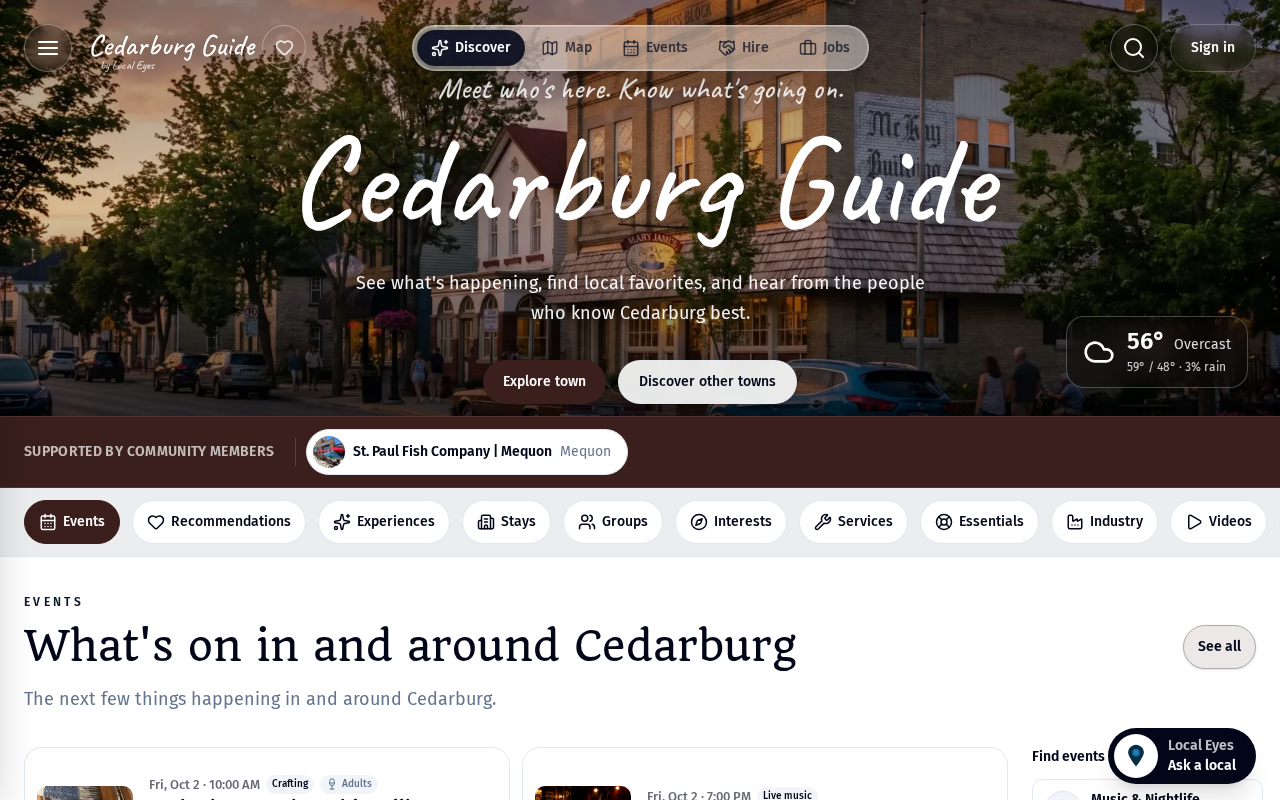
The Onboard tab on your Account page opens with a town picker covering every town assigned to you. Five numbers tell you where the town stands: places in town, how many are claimed, and how many are free, Basic or Premium members.
Part 2
Work the unclaimed list
Part 2
Work the unclaimed list
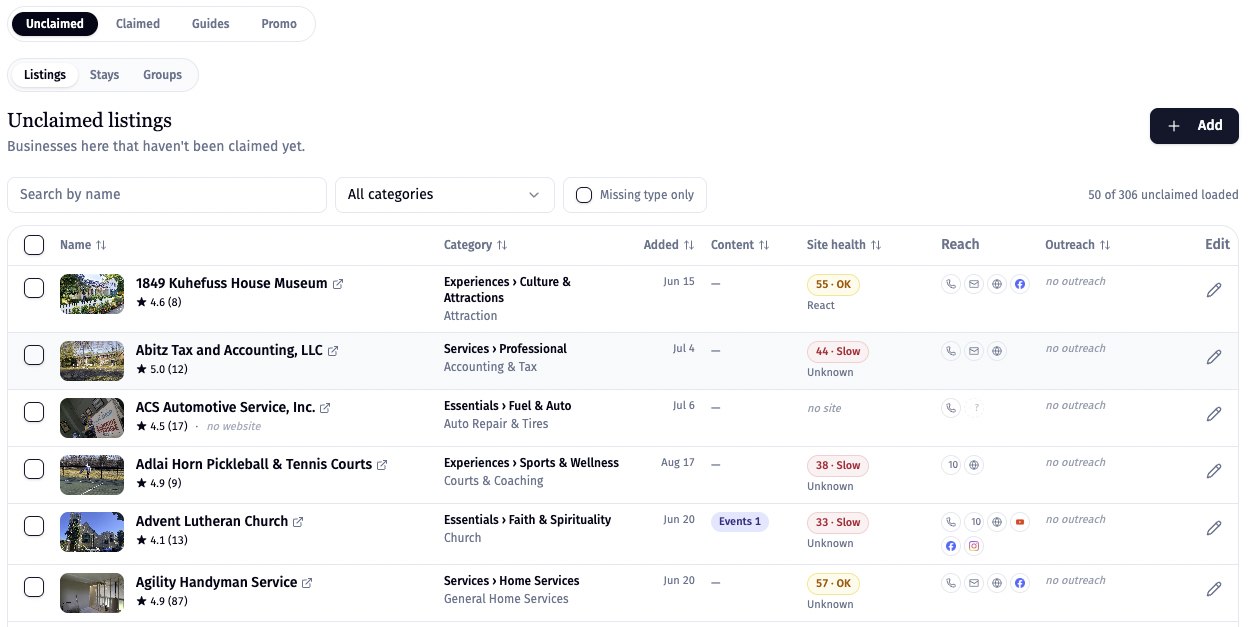
The Unclaimed table is every business, stay and group in town that has not been claimed yet. Search it, sort it by category, and cross places off as you go. Log a call or an email right from the row, so you always know who you have spoken to and never contact the same place twice.
Part 3
Follow-ups keep conversations alive
Part 3
Follow-ups keep conversations alive
The Follow-ups board gathers every open conversation across your towns: who you contacted, when, and who is due next. Nothing slips through between visits.
Part 4
Send a proposal in seconds
Part 4
Send a proposal in seconds
For any business, generate a polished proposal with real screenshots of their listing, their town page and their category — and send it straight from the dashboard. It shows owners exactly what being on the guide looks like before they spend a cent.
A proposal lands best right after a visit or a call, while the conversation is still warm.
Part 5
Guides in minutes
Part 5
Guides in minutes
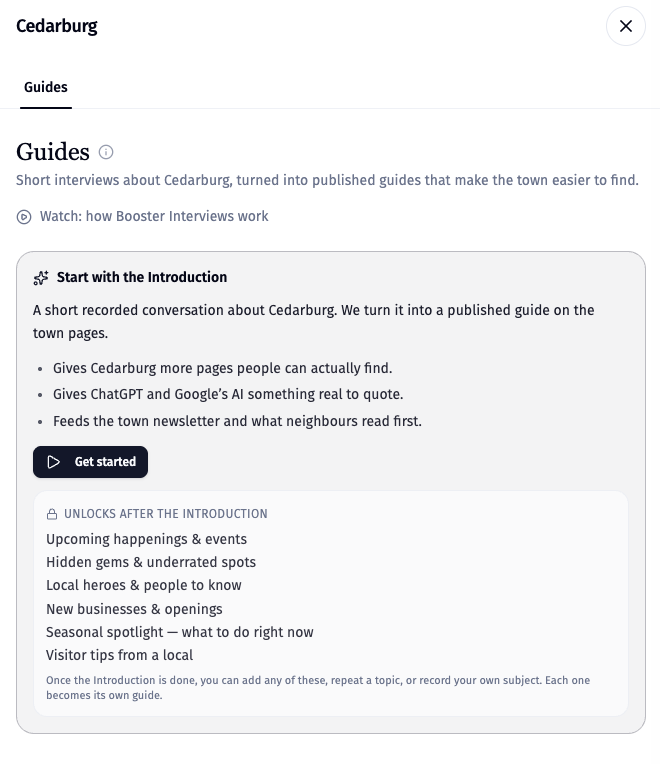
In the Guides tab, start with a short recorded introduction to Cedarburg. That conversation becomes a published town guide; after the introduction, you can record more subjects such as upcoming happenings, hidden gems, local heroes and visitor tips.
Part 6
Promo material
Part 6
Promo material
The Promo tab turns a town’s events and places into posters, table tents and social posts. They make useful leave-behinds when you visit a business: something physical that shows the town guide alive and working.
Part 7
Why it matters
Part 7
Why it matters
Every guide and poster you put into a town brings visitors to the guide — and every visitor is a reason for the next business to claim their listing. Onboarding and promotion feed each other.
A printed guide is the easiest door-opener: it shows a business exactly what being on the guide looks like.
Video walkthrough
Working a listing from the Onboard tab
Video walkthrough
Working a listing from the Onboard tab
Open Account › Onboard and pick the town you're working with the town picker. You'll see every unclaimed and claimed listing. We attach as many email addresses as we can find, but you can add any contacts you know yourself.
- 1Pick your townType a town name in the town picker to switch between the towns assigned to you.
- 2Open a listing and choose a contactUse an existing contact or add the person you know. Then choose Email, SMS or Call.
- 3Pick a templateStart with the intro “Ask to claim” template. There are several variations to suit how well you know the owner.
- 4Send it your wayIf your onboarder mailbox is set up you can send straight from the platform. If not, choose your mail app (default, Gmail or Outlook) and hit Open mail — the whole message opens in your own inbox. Add your signature, check it's going from the right account, and send.
Automatic follow-ups
What happens after the first email
Automatic follow-ups
What happens after the first email
When you send an “Ask to claim” email, the business is enrolled in a short sequence. The system automatically sends a nudge email and then a last-note email, roughly three days apart, so you don't have to chase. Every touch is logged, and the Follow-ups view shows who you've contacted, what you proposed and how.
As soon as someone replies yes, mark it Yes on their listing. That stops the sequence and automatically sends them their claim link.
Proposals and links
Proposal, claim link and page links
Proposals and links
Proposal, claim link and page links
The Proposal and links panel gives you one-click access to everything: download a full proposal, copy the claim link, copy their Local Eyes page or their website link. Email is the formal route. If you're on WhatsApp or friendly with the owner, just send the claim link directly so they can claim right away. The proposal is a polished document covering what Local Eyes does and how it benefits them, with QR codes and links to claim — a great add-on for prospects you don't know well or who need more convincing.